A little raven landed on your menu bar
Ever since I started using Immersive Translate, reading English web pages has become much smoother. A translation is always one glance away, and language no longer seems to be in the way.
But after a while, I noticed that I was often just understanding things quickly and moving on just as quickly. I finished reading the information, yet the original sentences left little behind. Reading had become easy, but my English didn't seem to be improving along with it.
I wanted to change the way I use translation tools: try to understand first, and ask for help only when I get stuck; try to express myself first, then check where I went wrong. And the sentences worth remembering, I wanted to keep, so I could practise them later.
These needs don't stop at the browser, either. So I made Raven, a native macOS translation app. It's like a little raven perched on the menu bar, ready whenever I call it.
Try to understand it first
I deliberately put myself in front of more English. When reading, I first try to work out what a sentence means from the words I know and the context around them. Sometimes I know most of the words but still can't make sense of them together, and I stop to think it over first.
When I really can't get it, I select the sentence, press ⌘1 to bring up the translation window, and then go back to the original with the translation beside it.
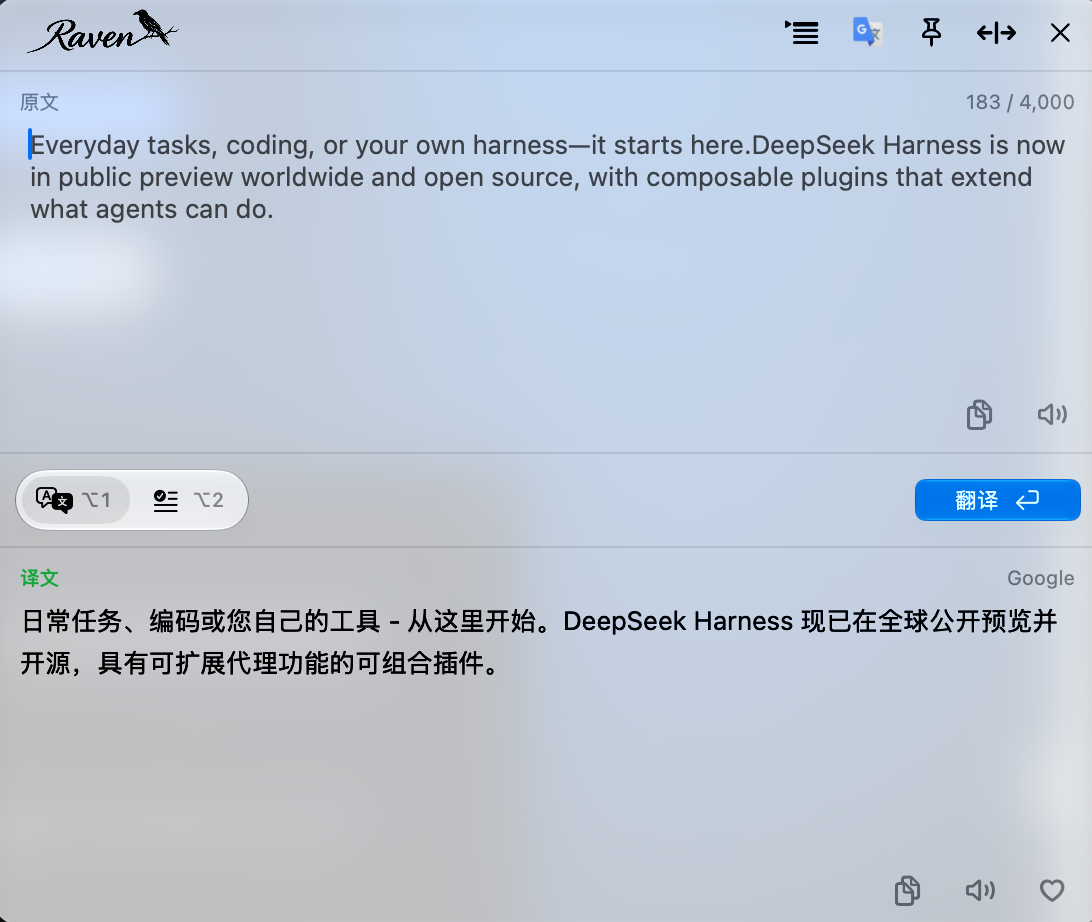
When I come across a sentence I like, I save it, and jot down where I found it.
For example, while watching Clarkson's Farm, I saved a line I really liked:
Life's shit but I'm loving it.
When I save it, I add a note: "came across this while watching Clarkson's Farm". That way, when I read it again, there's a scene to remember it by. For me, a sentence saved together with its moment seems to stick better than one picked out on its own.
Try saying it in English too
Besides reading, I try to write things in English as much as I can. My grammar and spelling aren't always right, but I want to get the meaning across first.
When I'm done and unsure, I select the text and press ⌘2 to check it.
In the example below, I deliberately wrote I can instead of can I in a question, spelled improve as imporve, and added an extra make. The check returns the corrected sentence and explains what was wrong with the word order and word choice.
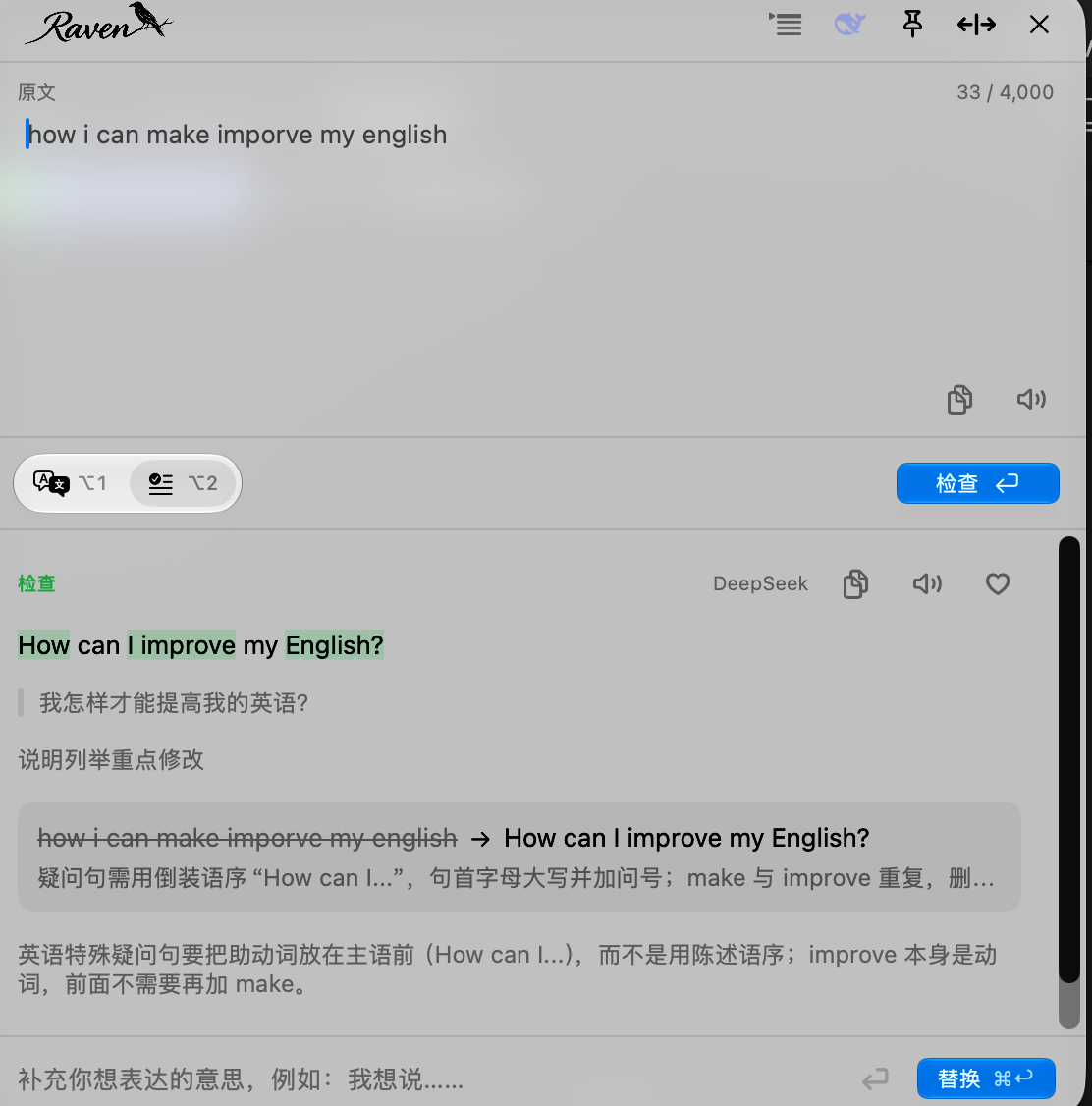
I look at what was changed and why before deciding whether to accept it. The AI sometimes misreads what I mean, too; when that happens, I can add more about what I wanted to say and have it check again.
Writing it once and then comparing it with the corrections is the only way I find out what I'm still not comfortable with.
Practise the sentences you meet again
What I save while reading and writing slowly adds up into my own learning material.
I go back over these sentences every day. In Raven's learning mode, I can practise translating from Chinese to English, dictation, fixing mistakes, or putting words in order, and try to write out again what I've already read.
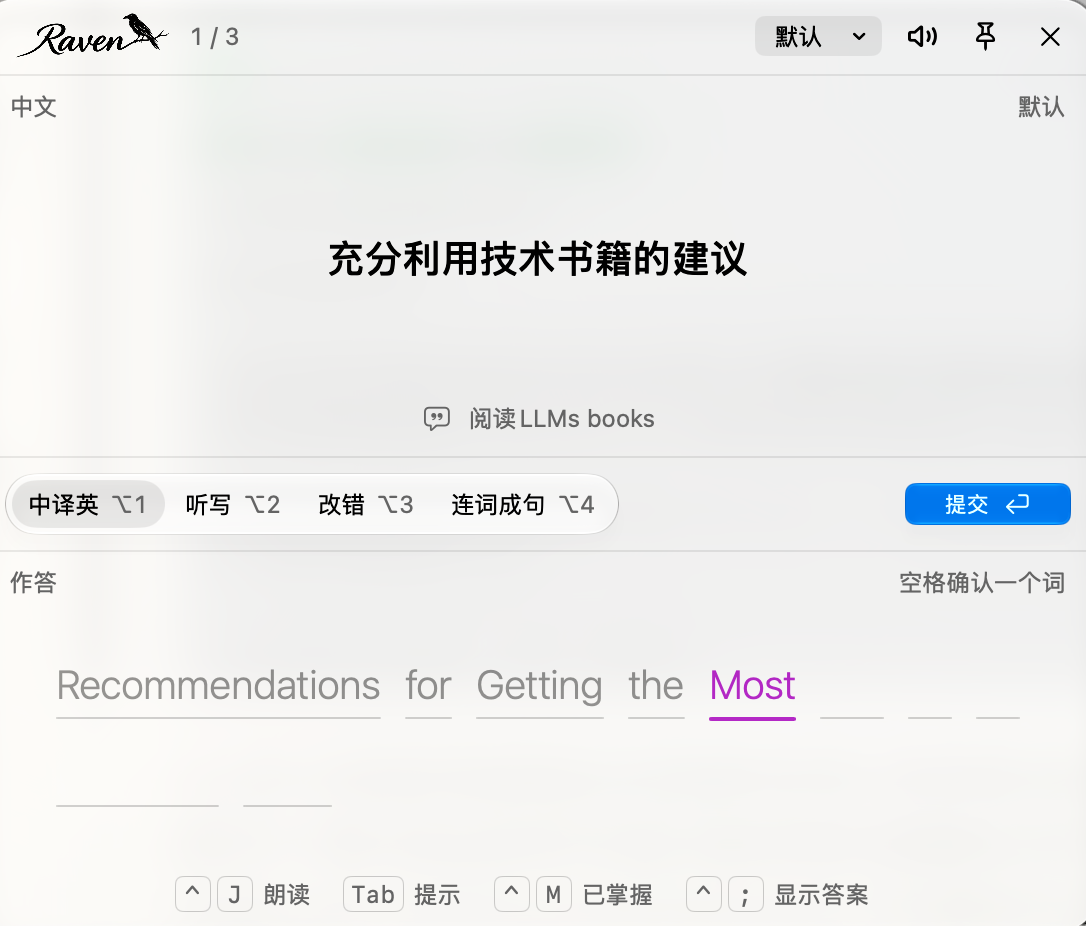
Something feels familiar when I understand it, but when it's my turn to write it, I don't always remember. Practising once makes it clear which words I remember and where I still slip up. Whatever I can't recall, I look at again and practise again.
I hope Raven can help me build this habit: think a little longer when reading English, try one more time when writing it, and when I meet a sentence I like, keep it and learn it slowly.
That's also why I made this little raven. It sits on the menu bar and helps me turn the bits of English I meet each day, little by little, into words I can understand and say myself.